















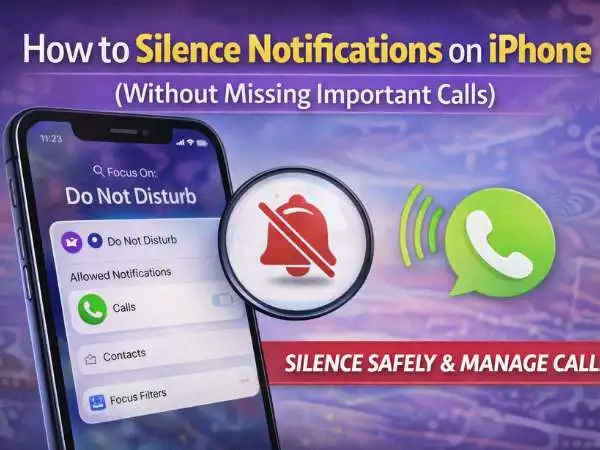
If you’re searching how to silence notifications on iPhone, here’s the direct answer:
Use Focus mode, Scheduled Do Not Disturb, or app-specific notification settings to stop alerts — while still allowing important calls if you want.
I’ve tested every method below during travel, late-night work sessions, and long meetings. The key is choosing the right tool. iPhone gives you multiple layers of control. Most people only use one.
This guide covers:
- How to silence notifications on iPhone at night
- How to silence notifications on iPhone iMessage
- How to silence notifications on iPhone but not calls
- How to turn off notification silence iPhone
- How to silence notifications on iPhone for one person
Let’s break it down clearly.
Quick Overview: Ways to Silence Notifications on iPhone
| Method | Best For | Blocks Notifications | Allows Calls? |
| Focus Mode | Night / Work hours | Yes | Customizable |
| Do Not Disturb | Temporary silence | Yes | Can allow favorites |
| App Notification Settings | Specific apps | Yes | Yes |
| Silence One Contact | One person only | Yes | Others unaffected |
| Scheduled Focus | Automatic night mode | Yes | Customizable |
If you only remember one tool, remember Focus Mode. It controls everything.
also read : – How to Turn Off an iPad: A Simple Step-by-Step Guide That Actually Helps
How to Silence Notifications on iPhone at Night
Night interruptions are the most common complaint.
Buzz.
Light flash.
Screen glow at 2 a.m.
The fix is Scheduled Focus.
Step-by-Step: Set Up Night Silence
- Open Settings.
- Tap Focus.
- Tap Do Not Disturb or Sleep.
- Tap Schedule.
- Set start and end time.
Now your phone silences notifications automatically at night.
You can also allow specific contacts during this time.
For example, I allow calls from family but block everything else after 10 p.m. It keeps emergencies reachable but removes noise.
Allow Calls but Silence Everything Else
Inside Focus settings:
- Tap People.
- Choose Allow Calls From.
- Select Favorites or specific contacts.
Now only approved calls break through.
This is ideal if you want quiet but can’t miss urgent calls.
How to Silence Notifications on iPhone iMessage
Sometimes it’s not all notifications. It’s one group chat.
Group chats can explode during events.
Here’s how to mute iMessage specifically.
Method 1: Mute One Conversation
- Open Messages.
- Open the chat.
- Tap the contact name at top.
- Toggle Hide Alerts.
A small bell icon appears beside the thread.
Messages still arrive. You just don’t get notified.
I mute busy group chats during work hours. It keeps my phone calm without leaving the group.
Method 2: Turn Off iMessage Notifications Entirely
- Open Settings.
- Tap Notifications.
- Tap Messages.
- Toggle off Allow Notifications.
This silences all iMessage alerts.
Use this only if you truly want no message interruptions.
also read : – An Error Occurred Installing iOS 14.8. How to Fix it? What is iOS 14.8?
How to Silence Notifications on iPhone But Not Calls
This is one of the most requested setups.
You want silence.
But calls must come through.
Use Focus with custom settings.
Steps:
- Open Settings.
- Tap Focus.
- Choose Do Not Disturb.
- Tap People.
- Choose who can call.
- Leave Apps section empty.
Now notifications are silent. Calls from selected contacts still ring.
You can also enable Allow Repeated Calls. If someone calls twice within three minutes, it bypasses silence.
I enable this during travel days. It protects me from spam but lets urgent calls break through.
How to Silence Notifications on iPhone for One Person
If one person sends frequent messages, you can silence only them.
Method 1: Hide Alerts
Open Messages → Open conversation → Tap name → Enable Hide Alerts.
Simple.
Method 2: Custom Focus Filter
Inside Focus settings:
- Tap People.
- Choose Silence Notifications From.
- Select the person.
This blocks alerts from that contact during Focus mode.
They can still send messages. You won’t be notified.
It’s subtle and effective.
also read : – StarCraft 3 Hype: Everything You Wished, You Knew! | (MOST UPDATED!)
How to Turn Off Notification Silence iPhone
Sometimes you forget Focus mode is active.
You wonder why your phone is quiet.
Here’s how to disable silence.
Turn Off Focus Quickly
Swipe down from top-right corner.
Tap Focus.
Turn it off.
Or go to:
Settings → Focus → Toggle off active mode.
If your phone seems permanently silent, check if Focus is scheduled. Many users forget scheduled night silence is still active during daytime.
Using the Physical Silent Switch
Every iPhone includes a side switch.
Flip it down to silence sound alerts.
This stops notification sounds but does not stop vibrations unless configured.
It’s the fastest method for quick silence.
I use it during meetings. One flick. Done.
Advanced Control: Silence Specific Apps
You don’t need to silence everything.
You can target apps individually.
Steps:
- Open Settings.
- Tap Notifications.
- Select the app.
- Toggle off sounds or alerts.
For example, you can silence social apps but allow banking alerts.
This keeps important alerts visible without constant buzzing.
Why Focus Mode Is Better Than Airplane Mode
Some people use Airplane Mode for silence.
That cuts off:
- Calls
- Messages
- Data
Focus mode keeps connectivity active while blocking alerts.
It’s smarter and more flexible.
also read : – Testing Internet Explorer Online: Strategies for Legacy Browser Support
Real-Life Scenarios Where Silence Helps
I’ve used notification silence in these situations:
- Overnight travel across time zones.
- Recording video without interruption.
- Long client meetings.
- Family events.
- Deep work sessions.
Silencing notifications reduces stress. It improves attention.
Your phone should serve you. Not control you.
Common Problems When Silencing Notifications
Notifications Still Buzzing
Check if vibration is enabled:
Settings → Sounds & Haptics → Turn off vibration.
Calls Not Ringing
Check Focus “Allow Calls From” setting.
Alarm Didn’t Go Off
Focus does not silence alarms.
If alarm fails, check volume or alarm settings.
also read : – Exploring the Benefits of CompTIA Certifications for Career Advancement
Final Thoughts
If you’re asking how to silence notifications on iPhone, you have several options.
Use Focus mode for full control.
Mute specific conversations for small fixes.
Silence apps individually if needed.
Allow important calls through with custom settings.
You don’t need to choose between total silence and constant noise.
Set it up once. Adjust when needed.
Your iPhone gives you more control than most people realize.
FAQ
How to silence notifications on iPhone at night?
Use Focus → Schedule → Set night hours.
How to silence notifications on iPhone iMessage?
Open conversation → Tap name → Enable Hide Alerts.
How to silence notifications on iPhone but not calls?
Use Focus → Allow calls from selected contacts.
How to turn off notification silence iPhone?
Swipe Control Center → Tap Focus → Turn off.
How to silence notifications on iPhone for one person?
Mute their conversation or block them inside Focus People settings.